How about we not take our pentesting notes in Microsoft Word
Why I built Been There, Conquered That: shared pentest notes, scans, and evidence that a team can run on a small machine on its own network.
Been There, Conquered That: a shared workspace for pentest notes and reporting, built to run on a small machine on the team’s local network.
Why
During collegiate pentest competitions, our team used a shared Word document to keep track of our work. It let everyone write in the same place, but as the notes grew, it became harder to find a specific command, screenshot, or result. Writing the report often meant asking teammates where they’d saved something or what a particular note referred to.
We already use Notion or Obsidian for our own notes, so I wanted a similar way to organize our competition work. Separate pages, a sidebar to navigate them, and properly formatted code blocks would make it easier to follow what everyone was doing.
We also used SLORPIN, Cal Poly Pomona’s nmap aggregator, to collect the team’s network scans in one place. Having those results together was useful, and I wanted a similar place for our notes and evidence so we could start writing the report without first tracking down everyone’s files.
That’s where Been There, Conquered That, or BTCT, came from. It gives the team a shared place to work, hosted on the same local network as their machines. One person starts it on a small server or spare box, and everyone else opens it in a browser.
It also needed to run on a machine with limited resources and be straightforward to set up before a competition. That’s why I made the current version lighter: the team should be able to share notes over the LAN without maintaining a complicated server setup or relying on a cloud service.
Notes you can find again
Instead of one document that keeps getting longer, BTCT has a tree of pages. You can keep an engagement overview at the top, put notes for each host underneath it, and give the report draft its own page. Titles, tags, and search help when you remember what you found but not where you put it.
The editor is familiar if you’ve used Markdown. Headings, checklists, tables, and code blocks are there, along with a slash menu if you don’t remember the syntax. Code blocks preserve a command’s spacing, which makes it much easier for someone else to read and reuse.
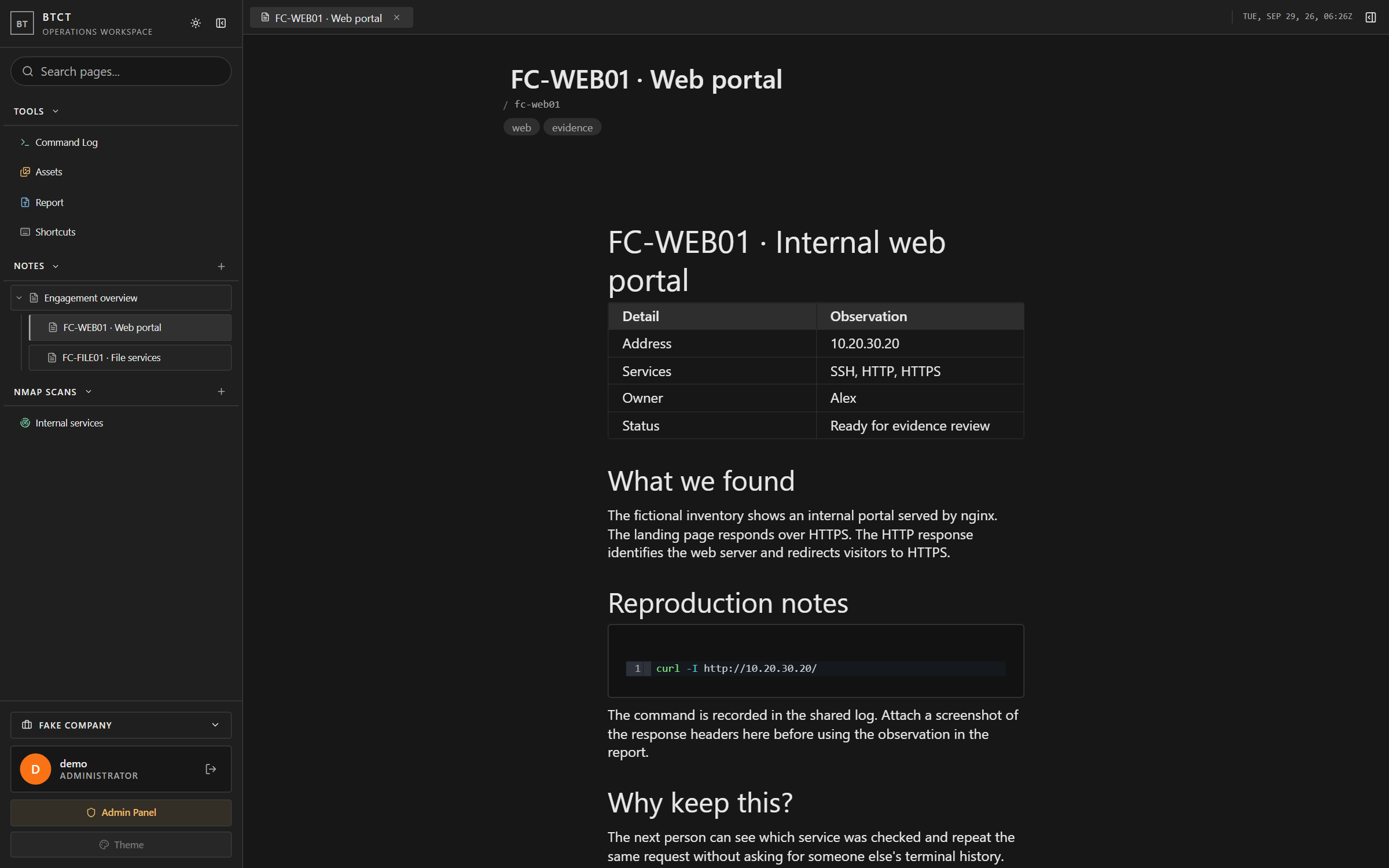
The screenshots in this post use a fictional Fake Company workspace.
People can edit the same page together and see each other’s cursors. That means the person writing up a finding can work from the notes while a teammate adds the missing details. Page history gives you a way to review changes and recover an earlier version if an edit goes wrong.
Everyone’s scans in one place
This is the part inspired by SLORPIN. A network scan tells you which machines are reachable and what services they’re exposing. It’s useful to the whole team, but only if the results aren’t stuck on the laptop that ran it.
BTCT imports nmap XML files into scan groups. Open a host and you can see its ports, service versions, and extra details from the scan. If someone scans that host again in the same group, the results merge into its existing entry.
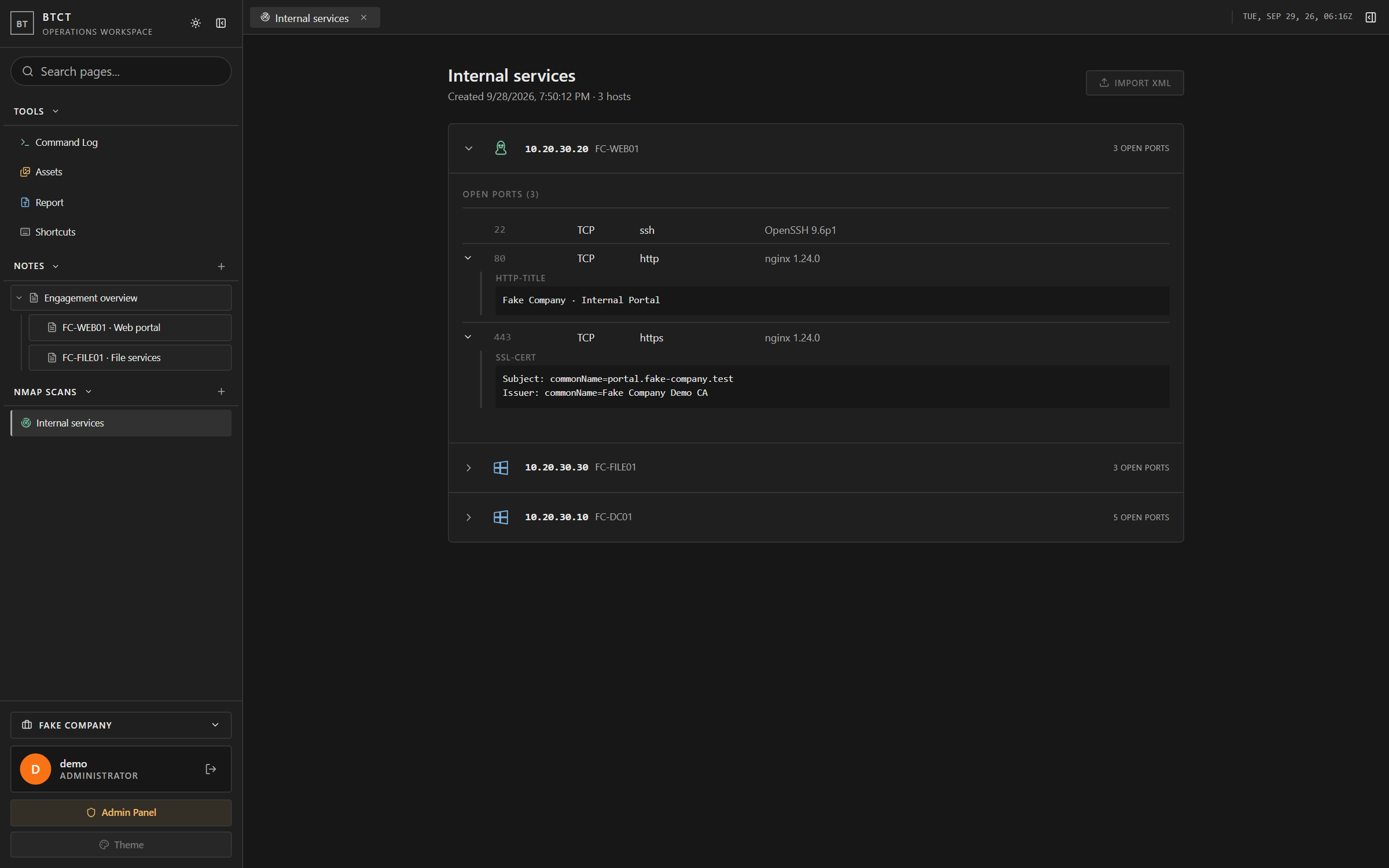
Now a teammate can check whether a service was already found before spending time scanning it again. The report writer can look up the same host without asking someone to send over their terminal output.
Keep the screenshots with the notes
A screenshot is much more useful when you know what it proves. Paste one into a note and BTCT adds it to the shared asset library too. The team can organize images into folders, crop them to the relevant area, and blur details before using them in the report.
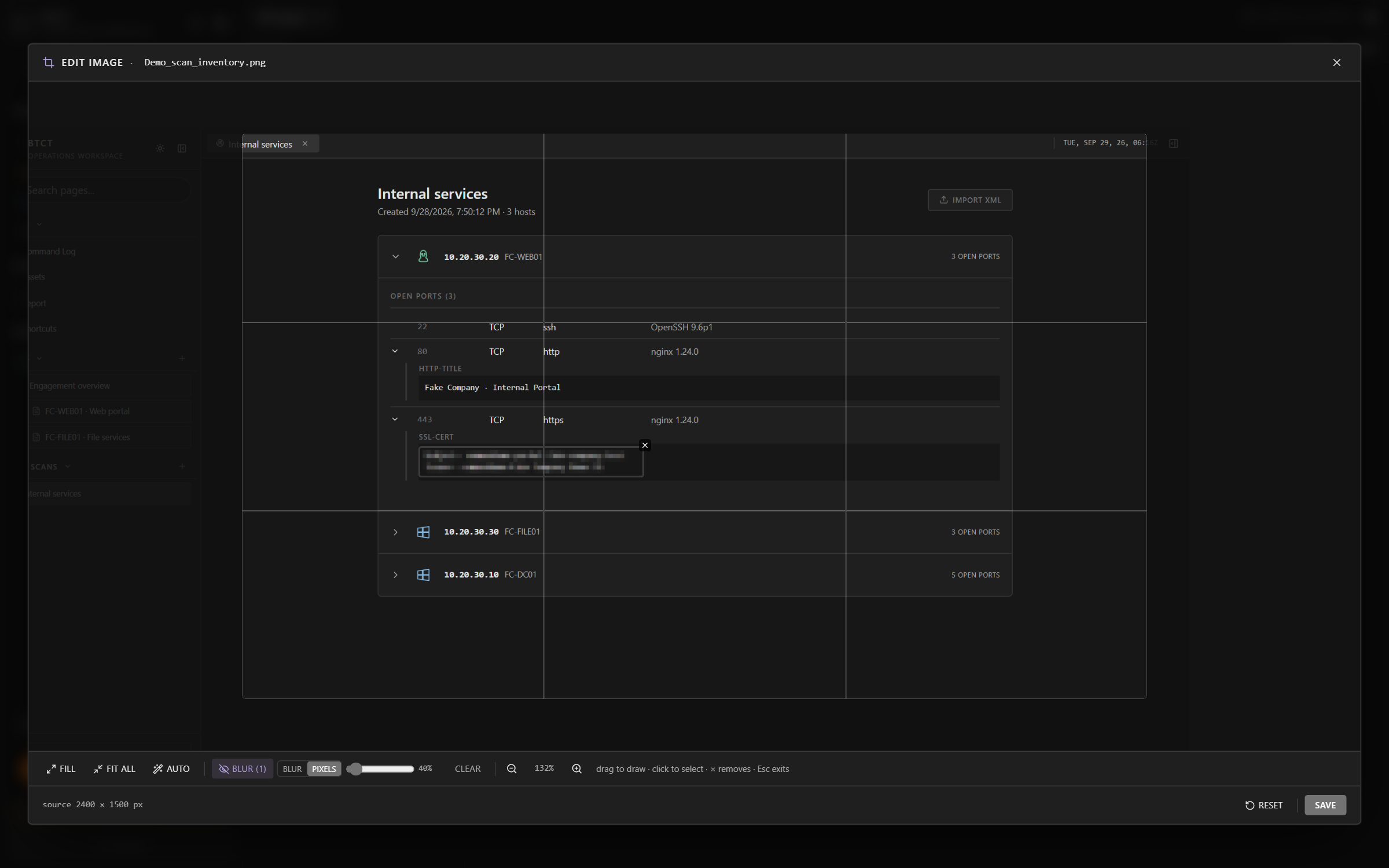
Those edits are reusable. If the same image appears in a note and the report, you don’t have to prepare two separate copies. BTCT keeps the original so the crop or blur can be adjusted later; the library itself isn’t a place to hide information from your teammates.
I want to be able to open a finding’s notes and see the explanation beside the evidence. A folder full of unnamed screenshots doesn’t give the next person much to work with.
What did we actually run?
By the time you’re writing the report, the exact command that worked can be surprisingly hard to remember. It might be in someone’s shell history, or it might be three terminal windows back on a machine they aren’t using anymore.
BTCT has a shared command log for this. A small agent on each operator’s machine records configured tools as they’re used, along with who ran them, when they ran, and their exit status. It saves the command line, not the terminal output. The team can filter the log by operator, host, or tool, then export the relevant entries for the write-up. There’s also a manual entry option for work the agent didn’t capture.
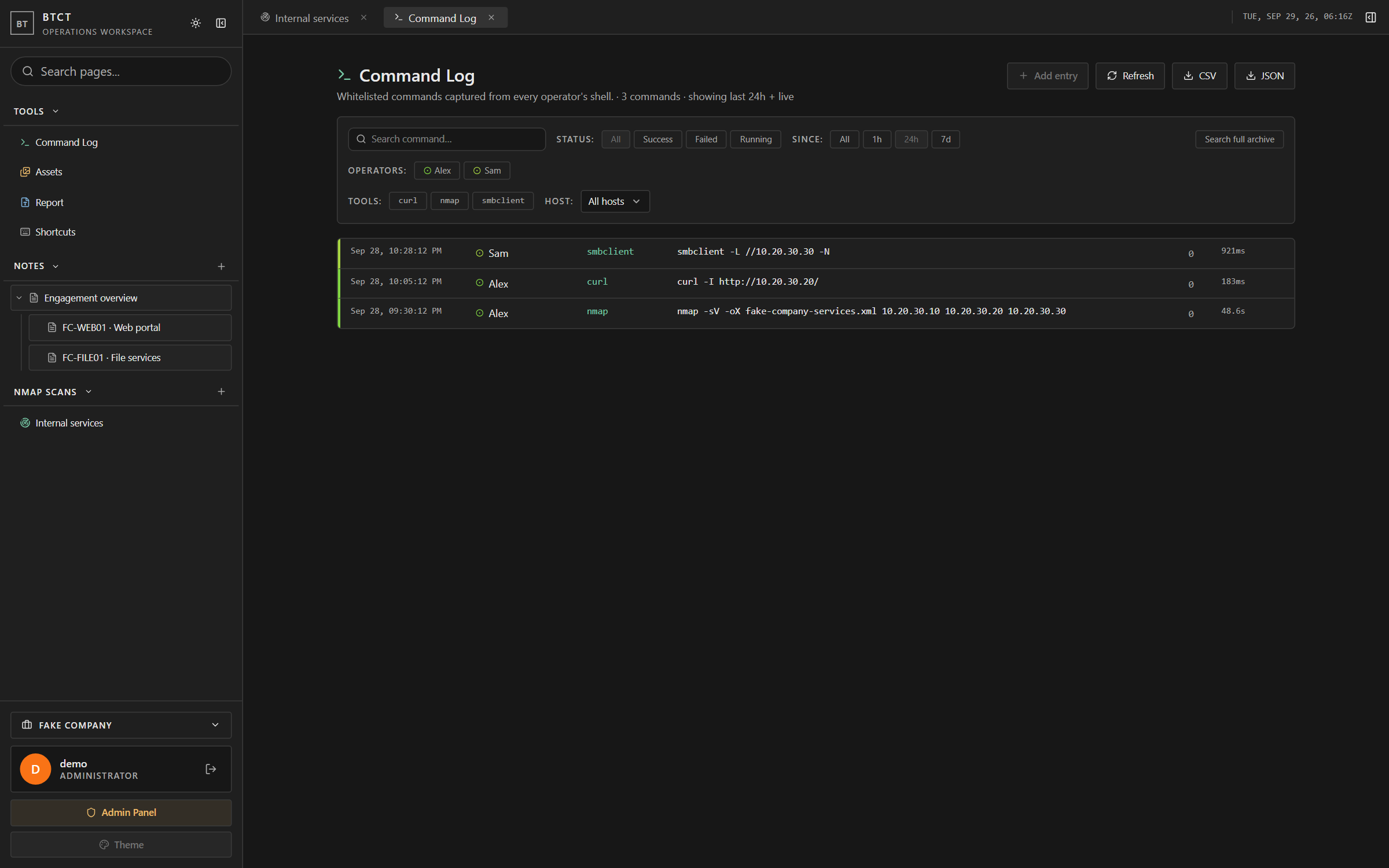
The agent attempts to redact recognized passwords, hashes, and other secrets before sending a command. That doesn’t cover every possible command format, and manually entered commands aren’t automatically redacted.
The log won’t explain why a command mattered. That’s still a note someone needs to write. It does save the team from having to reconstruct the command and its timing from memory.
Write the report beside the work
The optional report editor keeps the draft in the same workspace as the notes and screenshots. It uses Typst, a text-based document tool: you write the source on one side and see the formatted pages on the other. Teammates can work on the report together, just as they can with notes.
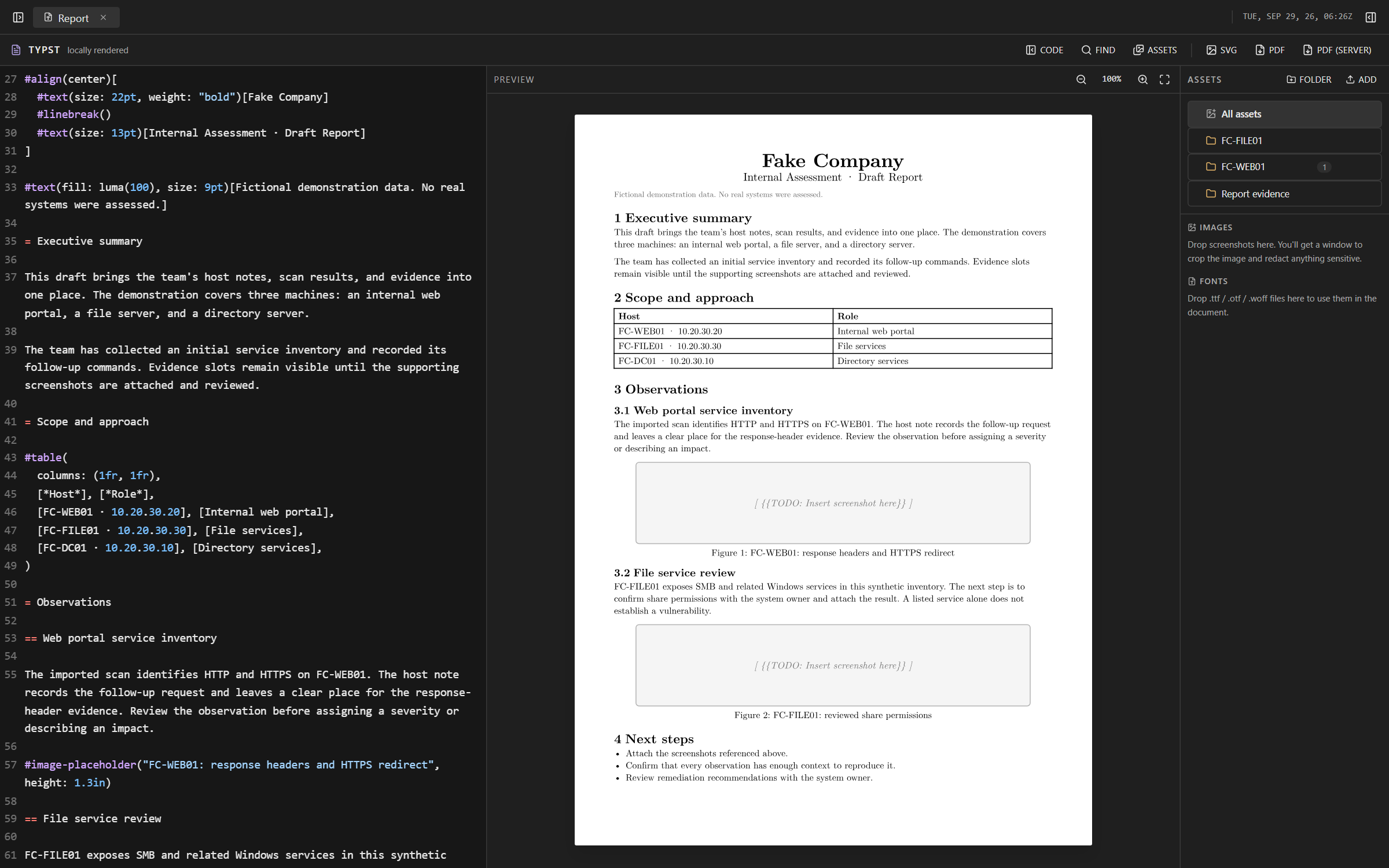
Screenshots from the shared library can fill figure slots in the report, and empty slots make missing evidence easy to spot. Split panes also let you keep a host’s notes or scan results next to the section you’re writing.
Typst does take some learning if you’re used to Word. I kept it optional so a team can use BTCT for notes and evidence without adopting another writing tool. When it’s enabled, the preview and browser PDF export use files served by the local app. The draft doesn’t need to go to an outside rendering service.
Why I made it smaller
Earlier versions had an attack graph, a separate findings view, a timeline, and an AI assistant. I cut those from the current app. They added code and screens to maintain, while the reason I started building this was much simpler: keep the team’s work organized and make it easier to write up.
The target is a LAN host with roughly 1 to 2 GB of RAM and one or two CPU cores. That’s a design target, not a promise that every report or workspace will use the same amount of memory. The browsers have work to do too, especially when editing large pages or rendering reports.
So the interface is simpler now. Heavy editors and image tools load when opened, closed notes release their live connections after saving locally, and the report tools stay unloaded unless they’re used. There are fewer decorative effects running while someone is just trying to read a page.
The stack, and why it’s there
The client uses React and TypeScript, built with Vite and styled with Tailwind. I kept the existing editor and collaboration pieces while trimming what the app loads up front. Milkdown and ProseMirror provide the note editor; CodeMirror handles code blocks. Those give the team familiar editing behavior without having to build a text editor from scratch.
Yjs handles live collaboration over WebSockets, so concurrent edits can merge without one person’s save replacing another’s. IndexedDB keeps a local browser cache, which helps notes recover after a dropped connection. That cache is useful on an unreliable network, but the shared server still needs backups.
The server runs on Bun and handles login, file serving, uploads, and the shared connections. SQLite stores things like accounts and the command archive, while LevelDB persists the collaborative documents. Neither needs a separate database server to administer. The live command feed only syncs a recent window of entries; older commands remain in the archive instead of making every browser carry the full history.
Typst’s browser compiler uses WebAssembly and loads with the optional report editor. Its default fonts are bundled locally. This keeps normal report preview work off the small host, though the operator’s browser needs the memory to compile the document. Additional Word and server PDF export options use the host’s resources when available.
Docker packages the server and built client together, with persistent data on a volume. The team has one service to start on the LAN and one address to open in a browser. That’s about as much setup as I want before we can start taking notes.